With DecSoft App Builder you not only can distribute your app through different platforms with the same codebase, but also prepare an app in different flavors, you can distribute and run it as separate apps in different platforms. With the same codebase (the same app in DecSoft App Builder) you can create apps that will looks with different icons, splash screens, app IDs, names, etc., at the Apache Cordova and Capacitor supported platforms.
Basically you can prepare different configurations for Apache Cordova and Capacitor to be used by the same app in DecSoft App Builder, so you can then distribute it in various flavors. Suppose you made an app for warehouses, the apps are the same for any possible warehouse, but you want to provide your customer with an app with their specific icon, splash screen, name, description, images, etc.
- When to use flavors
- When not to use flavors
- Be ready with flavors
- Place for compiled flavors
- App options precedence
- Different app resources
- Official hybrid plugins
- Flavors for HTML5 apps
- App flavors at runtime
A good sample can be the possible app for warehouses for different customers. The app have the same functionallity, the same number of app views and app dialogs and these have the same functionality. You want different icons, splash screens, app IDs, app names, so you can install it separately in Android or iOS, you may need to connect to different databases or use different APIs, but, basically the app remain the same. This is a good possible use of flavors.
When you cannot generalize your app and its functionalities. Returning to the app for warehouses, if you know that different customers will need specific functionalities, different app views and app dialogs, in these cases it is better to create different projects in DecSoft App Builder, that is, different apps. Anyway, you can continue distributing the app on different platforms using the same codebase!
From the app options form, on every view related with Apache Cordova and Capacitor, you will be capable to manage different flavors. You only need to select a flavor so the options at the specific app option page will be saved for the selected flavor. DecSoft App Builder will do the rest, creating the appropriate Apache Cordova and Capacitor images, configurations, BAT files and SHELL files, so you can then compile all the flavors.
When you compile your app in DecSoft App Builder, a "compiled" folder is created in the same folder in which your app project file is placed. Inside that folder you will found a subfolder named "www", which contains the app, ready to be distributed or debugged in the internal or any other browser.
When your app is intended to be compiled with Apache Cordova and Capacitor, you will find the "cordova" and "capacitor" subfolders inside the "compiled" folder. These "cordova" and "capacitor" subfolders store the default flavor of the app, with all the resources, configuration files, BAT and SHELL files, ready to compile the app with Apache Cordova and Capacitor.
When your app has additional flavors for Apache Cordova and Capacitor, you will find these flavors also in subfolders of the "compiled" folder, this time using the lowercase flavor names as suffixes. For example, if a flavor is called "PeterWarehouse", you will find folders like "cordova_peterwarehouse" and "capacitor_peterwarehouse", with all the resources, configuration files, BAT and SHELL files, ready to compile the app flavor with Apache Cordova and Capacitor.
When you work with flavors, some app options have precedence over others. Below you can see a table of these options and their precedence. Note that the default flavor refers to the one which always exists, that is, there must be always a configuration for Apache Cordova and Capacitor apps and that configuration is the default flavor. The default flavor cannot be removed and there is always there, except when you create a new one and selected it in order to configure it.
| Option | Precedence |
|---|---|
| App icon |
If you select an icon for a specific flavor, that icon will be used for that flavor app. If you don't use an icon for a specific flavor, the one selected for the default flavor will be used for the flavors with no selected icon. If you did not select an icon for the default flavor, the icon of the app will be used instead for any flavor, including the default. Is you did not select an app icon, the DecSoft App Builder default app icon will be used. In Apache Cordova and Capacitor, and for the Android platform, you can also provide adaptative icons. You can do it per every app flavor in which you are working. |
| Splash screens |
You can provide splash screens for every app flavor in both Apache Cordova and Capacitor. If you do not provide specific splash screens, the determined app icon will be used to prepare the right splash screens from there. |
| App name |
If you provide an app name for a specific flavor, that app name will be used for that flavor app. If you don't use an app name for a specific flavor, the one provided for the default flavor will be used for the flavors with no provided app name. If you did not provide an app name for the default flavor, the app name of the app will be used instead for any flavor, including the default. Is you did not provide an app name, the DecSoft App Builder default app name will be used. |
| App short name |
The same rule applies here, as for the app name. |
| App description |
The same rule applies here, as for the app name. |
| App identifier |
The app identifier must always be different on Android or iOS, since an app cannot be installed or will overwrite it if another app is already using the same identifier. Apache Cordova and Capacitor The app identifier (com.decsoft.appbuilder by default) is used for the default flavor. Other flavors will have identifiers composed of the app identifier and suffixed with the previously lowercase flavor name. Suppose you provide an app identifier like: "com.domain.warehouses": this will be the identifier for the default flavor. Now suppose you create a new flavor named "Peter warehouse", then the identifier for this specific flavor will be "com.domain.warehouses.peterwarehouse". Apache Cordova Apache Cordova allows us to specify different identifiers for Android and iOS (beyond the app identifier). If you provide a specific identifier for Android or iOS, that will be the identifier used for the flavors, including the default one, since every flavor can specify it. If you don't use any specific identifier for Android or iOS, the rule referred in Apache Cordova and Capacitor will be followed.
Important: If you use specific identifiers for Android or iOS, the app ID property will anyway store the original identifier. If you need to check what app flavor is running consistently, you can do it with the app flavor property. Take a look at App flavors at runtime.
|
If you need to use different app resources for your app flavors, for example, different logo images per every flavor, there can be many ways, and, probably a good one can be to use the app Files Manager, so you can include a folder which contains the different resources for your app flavors.
A sample of this is the Flavors sample app which is included with DecSoft App Builder. If you take a look, aside the app project file, you can see a "resources" folder. That folder is included as a directory using the app Files Manager. This is the folder structure:
From your app, it's easy to refer to a resource of a specific flavor. For example, as you can see in the Flavors sample app, take a look at how we show the icon of the app flavor which is running:
As you can see, the key here is the app Flavor property, as is referred below at App flavors at runtime. With this app property you can compose the right path for images, JSON files, etc., etc., depending on the app flavor which is running.
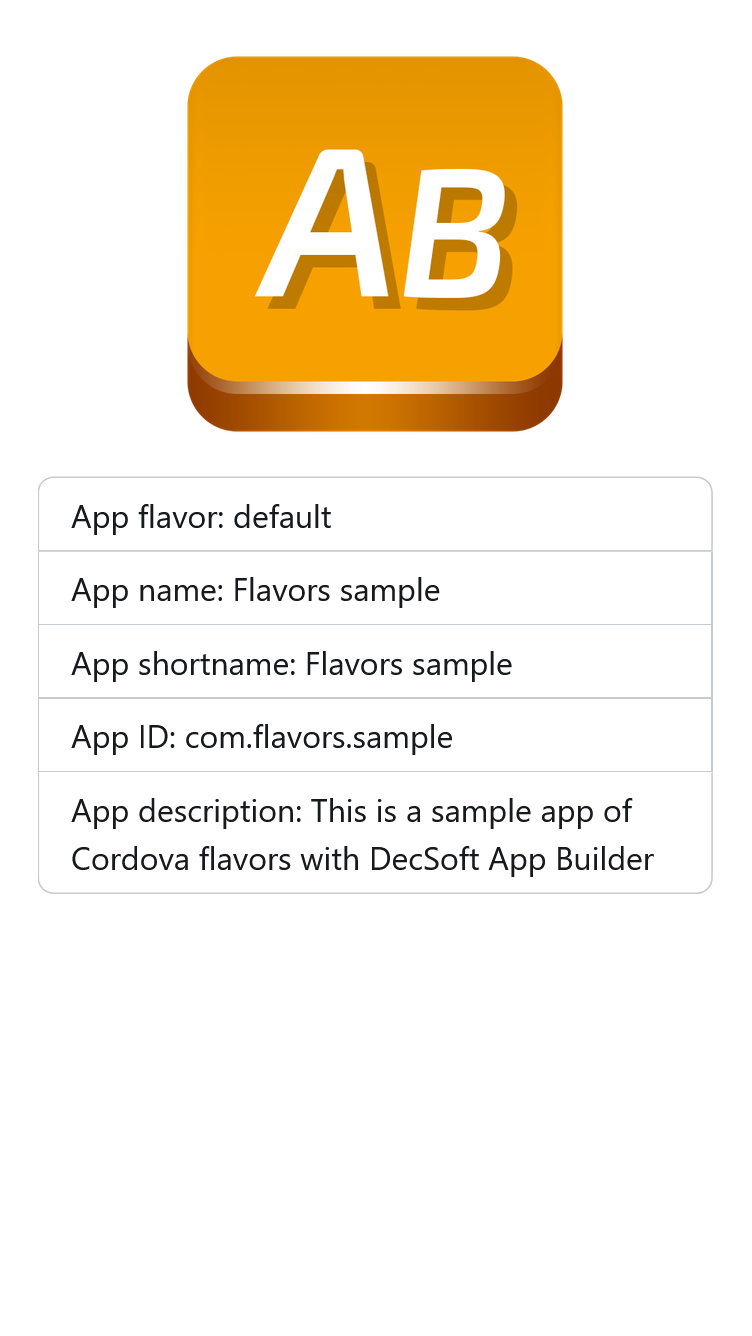
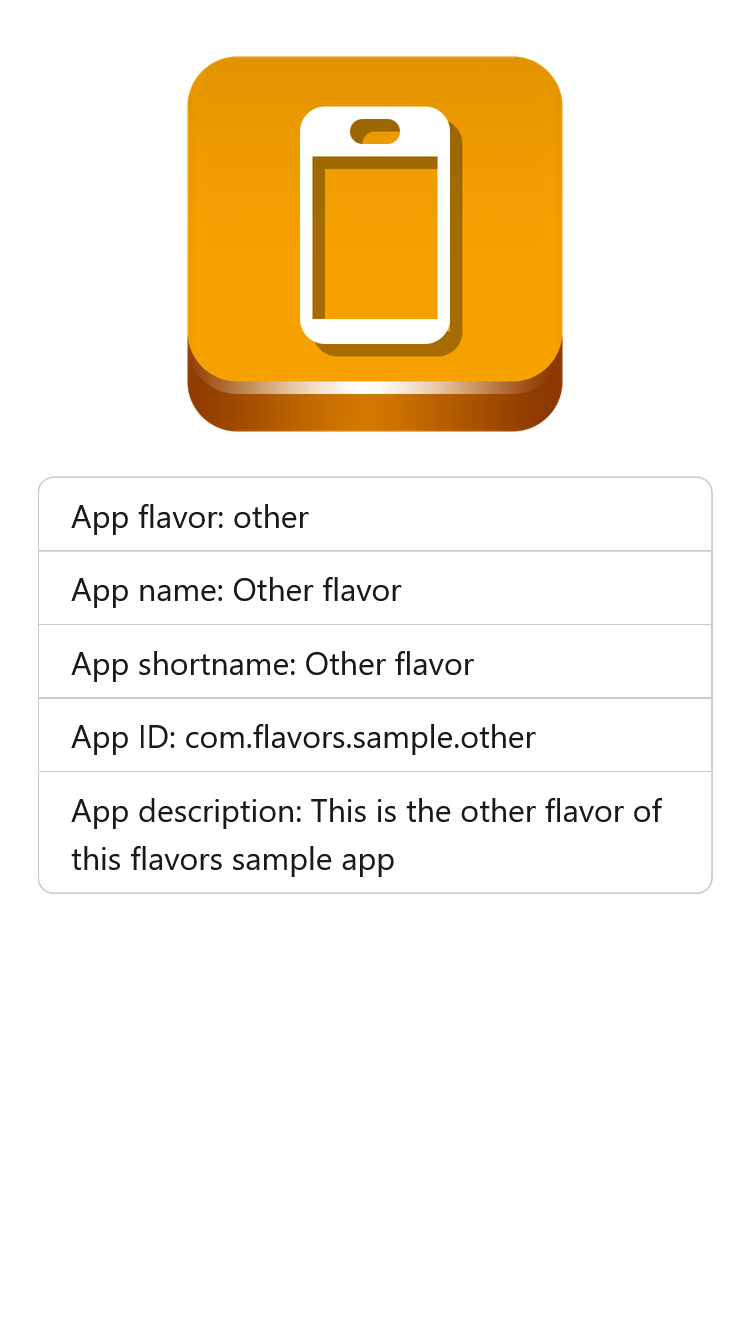
Below you can see the two flavors of the Flavors sample app running. Look how the right logo image is used for the right app flavor:
DecSoft App Builder offers JavaScript APIs ready to be used with some of the official plugins of Apache Cordova and Capacitor. Since that JavaScript is placed in the app, it's the default flavor that determines the plugins to be available, so other flavors cannot add or remove it from the selected to be used by the default flavor.
Don't worry! First of all, since we are talking here about flavors of the same app, probably you want to use the same plugins; however, you can use the "Custom plugins" option or the Batch files and Shell files app options in order to add other plugins of Apache Cordova and Capacitor. Since in this case you must use the provided plugins APIs, there is nothing added to the app before the plugins are installed and ready to use.
Even when app flavors are mainly intended for Apache Cordova and Capacitor (so they have different identifiers, names, icons, splash screens, etc.), since our base is always the HTML5 app, of course that you can use and distribute any app flavor in addition to the default one.
On every flavor compilation folder (see Place for compiled flavors) you will find a "www" subfolder. That subfolder contains the HTML5 app compilation for that specific flavor, so you can use and distribute it. The default app flavor can be found at the "[Your app project file]/compiled/www/" folder.
When you deal with app flavors, since the codebase is always the same, you need a way to know what app flavor is running, so you can use the right API URLs, for example, for a specific app flavor. DecSoft App Builder provides you the right way to identify the app flavor which is running.
From JavaScript you can read the app flavor property, which will store the name of the app flavor (in lowercase) that you set when created. Also the app ID, app Name, app Shortname and the app Description properties can contain specific information for specific flavors. You can follow the App options precedence table to know what you can expect on these variables in different app flavors.